How to Listen to Your Twitter Feed in 2026: Every Method Compared
You want to listen to your Twitter feed. But there are at least seven different ways to do it now, and they range from almost functional to actually great. So which one should you use?
I've tested all of them. Here's the full breakdown.
Key Takeaways
- Twitter Spaces is live audio, not a feed reading tool. Not recommended for feed listening.
- Copy-pasting tweets into Speechify works but destroys the reading flow and loses context.
- Read Aloud extension reads everything on the page, including ads and UI elements. Not Twitter-specific.
- Tweet2Audio is abandoned and uses low-quality browser voices. Not actively maintained.
- Xeder is built specifically for Twitter, uses Google Cloud TTS, and reads your actual feed seamlessly.
- Browser built-in TTS has a 14-second bug with certain voices and reads all page elements.
- Screen readers are accessibility tools, not designed for casual feed listening.
The Complete Comparison Table
| Method | Cost | Setup Time | Voice Quality | Feed Awareness | Overall Rating |
|---|---|---|---|---|---|
| Twitter Spaces | Free | N/A | Human | No (live audio only) | Not suitable |
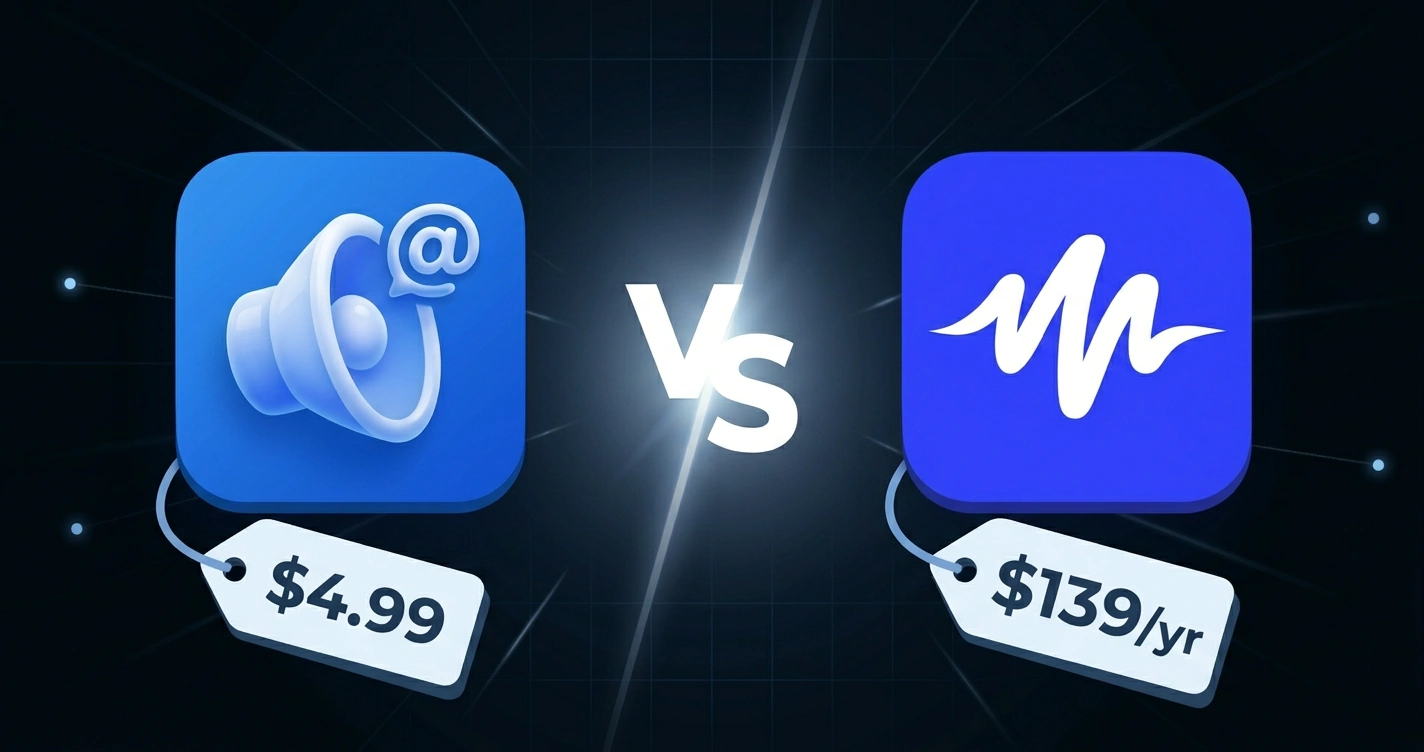
| Speechify (copy-paste) | $139/yr or $12/mo | 30 seconds per tweet | High | No | Functional but slow |
| Read Aloud extension | Free | 5 minutes | Good | No (reads whole page) | Good for articles, not Twitter |
| Tweet2Audio | Free | 5 minutes | Basic | Yes (but abandoned) | Not maintained |
| Xeder | $4.99 one-time | 2 minutes | Excellent | Yes (built for Twitter) | Best option |
| Browser built-in TTS | Free | 1 minute | Basic to Good | No (reads all text on page) | Limited by bugs |
| Screen readers (NVDA, JAWS) | Free to $1000+ | Steep learning curve | Good | No (accessibility tool) | Not intended for this |
Method 1: Twitter Spaces
What it is:
Twitter Spaces is live audio hosted on Twitter. Creators go live, people join to listen, and conversations happen in real time.
Does it listen to your feed?
No. Spaces is for live events, not for reading your timeline. You'd have to wait for someone to host a Space about tweets you care about, then join a live call. That's not feed listening.
Spaces is great for podcasts, AMAs, and live conversations. But if you want to listen to your Twitter feed (the tweets you follow), this doesn't do it.
Method 2: Copy-Paste Into Speechify
What it is:
Speechify is a popular text-to-speech app (200+ voices, $139 per year). Speechify's suggested approach for Twitter is to copy individual tweet text, paste it into Speechify, and listen.
Pros:
- Excellent voice quality and huge voice selection
- Works everywhere, not just Twitter
- Reliable, actively maintained
Cons:
- You have to manually copy and paste each tweet
- Breaks the reading flow (copy, switch apps, paste, listen, repeat)
- Loses tweet context (no thread awareness)
- $139/year is expensive for Twitter-specific use
- For Twitter alone, you're paying for a general TTS tool that solves a specific problem poorly
Speechify is great if you use it for everything (articles, documents, emails). For Twitter alone? You're paying premium prices for a manual workflow. This is why you should look at dedicated Twitter solutions.
Method 3: Read Aloud Chrome Extension
What it is:
Read Aloud is a free, open-source Chrome extension that reads any webpage aloud. It supports cloud voices from Google, Azure, and Amazon.
Pros:
- Free and open source
- Works on any website, not just Twitter
- Good voice quality with cloud TTS options
- Power-user friendly
Cons:
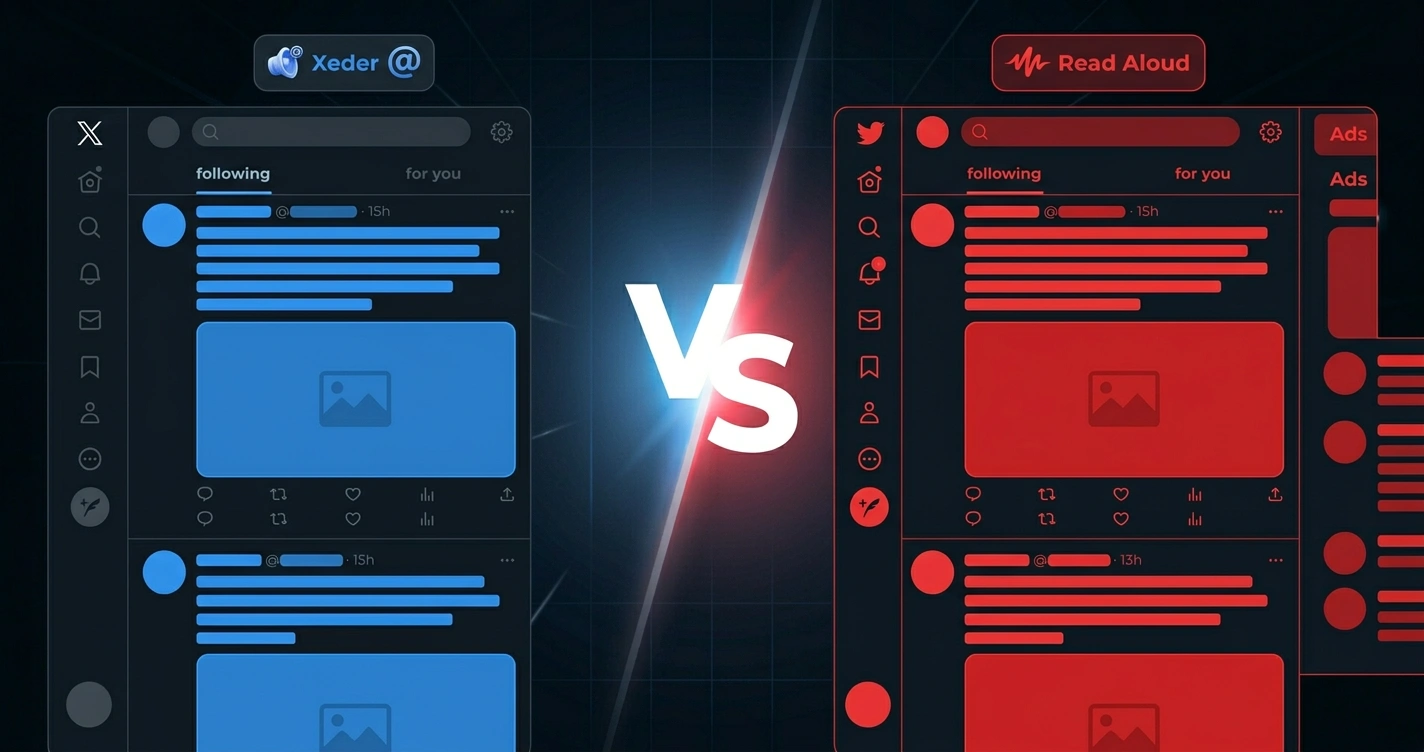
- On Twitter, it reads EVERYTHING: ads, "Show more" buttons, timestamps, "X followers" UI elements, navigation text, promoted tweets
- No awareness of tweet structure, just reads visible text
- Creates a jarring listening experience on the feed
- You get ads read aloud as if they're regular tweets
- Chrome's 14-second TTS bug affects it when using browser voices
Read Aloud is fantastic for reading news articles, blog posts, and long-form content. But on Twitter, it reads everything on the page including UI noise. It doesn't understand that you want only the tweet text, not the metadata and buttons.
See our detailed comparison of Xeder vs. Read Aloud.
Method 4: Tweet2Audio
What it is:
Tweet2Audio is an open-source browser extension that was designed specifically for reading tweets aloud. It was a good solution in 2019.
Pros:
- Built specifically for tweets
- Free and open source
- Understands tweet structure
Cons:
- No longer maintained (last update was years ago)
- Uses low-quality browser voices
- May not work with current Twitter DOM changes
- If it breaks, no one is fixing it
- Better options exist now
Tweet2Audio was ahead of its time. The idea was right (built for tweets), but the project is no longer maintained. Twitter (now X) changes its DOM structure regularly, which breaks extensions that rely on scraping the page. If Tweet2Audio breaks, there's no one to fix it.
Method 5: Xeder
What it is:
Xeder is a Chrome extension built specifically for reading your Twitter feed aloud. It uses Google Cloud Text-to-Speech and costs $4.99 one-time.
Pros:
- Built specifically for Twitter, understands tweet structure
- Google Cloud TTS voices are excellent quality
- One-time $4.99 payment, no subscription
- Actively maintained
- Reads only tweet content, skips UI noise, ads, promoted content
- Seamless workflow (open feed, press play, listen)
- Playback controls (pause, resume, skip, speed)
Cons:
- Chrome extension only (not available on other browsers yet)
- Requires internet connection for Google Cloud TTS
Xeder is purpose-built for this exact task. It understands your Twitter feed, reads it intelligently, and uses high-quality voices. At $4.99, it costs less than a month of Speechify and works better for Twitter than Speechify does.
See our detailed comparison of Xeder vs. Speechify.
Method 6: Browser Built-in Text-to-Speech
What it is:
Most modern browsers (Chrome, Edge, Safari) have built-in text-to-speech accessible through Settings or accessibility menus. No installation required.
Pros:
- Free and built-in
- No extension to install
- Works on any website
Cons:
- Chrome has a known 14-second cutoff bug with certain voice packs
- Reads everything on the page (ads, navigation, timestamps, UI elements)
- Limited voice options (typically 3-5 basic voices)
- No awareness of tweet structure
- Basic voice quality compared to cloud TTS
Browser TTS is a fallback option, not a recommended solution. The 14-second bug alone makes it unreliable for reading even moderately long tweets.
For a deeper explanation, see why general text-to-speech extensions don't work well on Twitter.
Method 7: Screen Readers (NVDA, JAWS, VoiceOver)
What it is:
Screen readers are accessibility tools designed for people with visual disabilities. NVDA is free, JAWS costs $1,000+, and VoiceOver is built into Mac.
Pros:
- Excellent at navigating semantically structured content
- High-quality voices
- Works everywhere, not just Twitter
- NVDA is free and open source
Cons:
- Not designed for casual feed listening, designed for accessibility
- Steep learning curve (keyboard shortcuts, commands, navigation)
- Overkill for the task
- JAWS is extremely expensive
- Requires time investment to learn
If you use a screen reader because you're blind or have low vision, Twitter's accessibility has improved but still has issues. But if you're looking for a tool to listen to your feed casually, screen readers are overengineered for the task.
The Verdict: Which Method Should You Use?
It depends on your use case, but here's the simple answer:
- If you only want to listen to your Twitter feed: Use Xeder. It's $4.99, works perfectly for this, and saves you money and time compared to every other option.
- If you want to use TTS everywhere (articles, documents, emails, and Twitter): Use Speechify. Yes, it's expensive, but if you're already paying for it, use the app rather than copy-pasting. Or use Read Aloud (free) and accept the limitations on Twitter.
- If you want something free: Use Read Aloud, but only for articles and long-form content. Don't use it for Twitter; the experience will be frustrating.
- If you use a screen reader for accessibility: Your OS's built-in screen reader is your baseline. Explore tools like Xeder that might enhance that experience.
Ready to Listen to Your Feed?
Xeder is the fastest, best way to listen to your Twitter feed. Get started in 2 minutes.
Get Xeder on Chrome Web StoreLearn More
Want to understand why general TTS tools struggle with Twitter? Read why general text-to-speech extensions don't work well on Twitter.
Comparing Xeder to other tools? Check out Xeder vs. Speechify or Xeder vs. Read Aloud.
Interested in listening to your feed while working? See how to keep up with Twitter at work without getting caught.
Frequently Asked Questions
Which method has the best voice quality?
Google Cloud TTS (used by Xeder) and Speechify have the best voice quality. Browser voices are basic. Screen reader voices are good but require learning to use.
Can I use these methods on mobile?
Most are Chrome extensions, so they're desktop/laptop only. Check your mobile device's built-in accessibility settings for TTS options. iOS has VoiceOver, Android has TalkBack and Google's TTS settings.
Will these extensions work with Twitter's algorithm changes?
Xeder is actively maintained, so yes. Tweet2Audio is not maintained, so it may break. Speechify is maintained, so yes. Read Aloud is maintained, so yes, but it doesn't matter because it reads the whole page anyway.
Can I adjust playback speed?
Xeder supports playback speed adjustment (1.0x, 1.25x, 1.5x, 2.0x). Speechify supports it. Browser TTS typically supports 0.75x to 2.0x. Screen readers support speed adjustment.
What if I want to listen without leaving Twitter?
Xeder integrates directly into Twitter. You stay on the page and listen. Speechify requires copying and switching apps. Read Aloud reads from the Twitter page itself.
Are there any privacy concerns with these tools?
Xeder uses Google Cloud TTS, so your tweets are sent to Google's servers to be converted to speech. Speechify sends text to Speechify's servers. Read Aloud can use Google, Azure, or Amazon TTS. Browser TTS processes locally (no server). Check each tool's privacy policy.